
Alert is used for urgent messages for the site’s user. Alerts tell people important and time sensitive information they need to know. They should not stay on a page forever.
Adding an Alert
Image
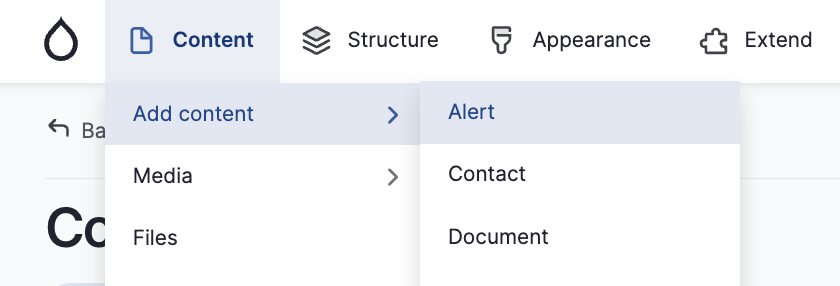
Once logged in, go to the Drupal Admin toolbar and navigate to Content > Add content > Alert
Fill in the necessary fields:
- Title: Required field
- Snippet: (Note: at the time of site delivery this will not appear on the front-end of the site. Ask you project contact or support for assistance if this is needed)
- A short excerpt/summary of what residents need to know and do.
- This field has a maximum of 160 characters.
- This will display at the top of all pages.
- Body: Additional details, including links to supporting information
- Related content: Optional
- Related contact checkbox can be used to add a Contact to a node. This will display the contact information in the sidebar of the alert.
- Related field to add a relavant new item
- Start typing the title of the news item to select
- Toggle Send mailout to subscribers (see instructions below)
- Once you have filled out the above fields, select the Publish button at the top of the page.
Send Mailout to Subscribers
To send a notification of the published Alert to your subscribers
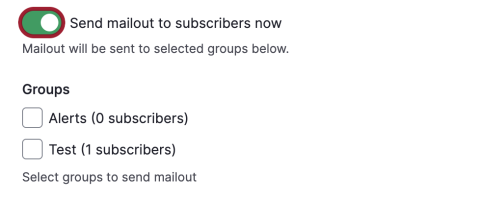
- Toggle the Send mailout to subscribers now on
- Select the appropriate Group(s) checkbox (eg. Alerts)
Image
Editing a Content Type
- To edit a specific node, click on Content in the Drupal toolbar.
- Filter content type dropdown by Alert.
- Click the Filter button.
- Click edit to the right of your specific item in the Operations column or click the Title of your item and then click the Edit button.
- Make your desired edits.
- Once done, click the Publish button at the top of the page
Unpublishing an Alert
- Follow steps 1-4 above
- Click the Unpublish button at the top of the page