This content type can be displayed in a list view on the Contact Us page or on the sidebar of a related page. This type will include fields for the department name, title, phone number, and email, as well as a WYSIWYG (‘what you see is what you get’) text editor and content rows for any additional content that’s required.
Adding a Contact
Once logged in, go to the the Drupal Admin toolbar and navigate to Content > Add content > Contact
Fill in the necessary fields:
- Contact name: Required field
- This field could also be used for "Departments" or "General Inquiry" if no person's name is needed
- Job title: Optional
- Department: Select from the pre-populated list. Optional
- Hold shift to select multiple departments
Clicking the Settings accordion, you can:
- Toggle Exclude from listings
- This excludes the contact from the front-end contact directory (Toggle button)
- This would be useful if you want a person's contact on a specific page on the site, but not listed on the Contact Us page
- Check Type(s): Department, General, Individual (checkbox)
- This is used for filtering lists
- Clicking the Contact information accordion will display the following additional fields:
- Phone
- After-Hour Emergencies
- Fax
- Address
- Body: Optional text field, can be used for staff bios or larger department descriptions
- This will appear in a detail view
- Once you have filled out the above fields, select the Publish button at the top of the page.
Editing a Content Type
- To edit a specific node, click on Content in the Drupal toolbar.
- Filter content type dropdown by Contact.
- Click the Filter button.
- Click edit to the right of your specific item in the Operations column or click the Title of your item and then click the Edit button.
- Make your desired edits.
- Once done, click the Publish button at the top of the page
Displaying a Related Contact
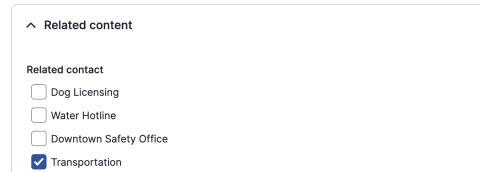
- Contacts can be added to most other content types, including standard pages, using the Related contact checkboxes under the Related content tab on the page or node you want this contact to display.
- Once a contact has been added, it will display below the sidebar menu navigation on the front end
Image
Image