
Images within the website should be used to:
- Provide visual context
- Enhance messaging
- Make complicated information easy to understand
- Reflect diversity and inclusion
Review the following guidelines and steps before adding images to a web page.
Best practices
- Use photos in which the subject is clear and easy to understand.
- Use photos that have good natural lighting.
- Use a variety of subjects and locations, especially if using multiple images.
- Try and include more diversity and more candid, organic, and natural portraits.
- Include a description of the information in a graphic with text (i.e. a graph or chart communicating complex content) below the image for legibility and accessibility. We recommend limiting the use of graphics with text; they should be used only when necessary.
What to avoid
- Don't use graphics or event posters as images.
- Don't include text or use photos with text on an image. This is inaccessible to screen reader technology.
- Don't stack logos over an image to communicate the brand. Logos over an image might reduce legibility of the logo and image, or reduce the impact of the main logo within the website header.
- Don't use imagery with people that are displaying exaggerated emotions.
- Don't use photos with too many focal points.
- Don't use photos taken exclusively at a single location or public event.
- Don't use stock photos with white backgrounds or abstract image concepts (i.e. synergy, a picture of a puzzle, or an object cutout).
Accessibility
Offer text-based alternatives for image content (called 'alt text') to ensure all users can access the information. For complex images, such as charts or infographics, provide detailed descriptions either in the main text or as a caption.
Tips for writing alt text
Alt text should convey the content and function of the image while keeping context in mind. Keep in mind when writing alt text that you are 'someone's eyes'.
- Be Descriptive and Concise: Clearly describe the image in a few words or a sentence. Aim to be succinct while conveying the essential information.
- Context Matters: Tailor the alt text to the context in which the image is used. Consider what information the user needs to know about the image in relation to the surrounding content.
- Avoid Redundancy: Do not repeat information that is already provided in the surrounding text. The alt text should add value and not be redundant.
- Omit "Image of": Avoid starting with phrases like "Image of" or "Picture of." Screen readers already announce the presence of an image, so this is unnecessary unless specifying the type of image is essential (e.g., "Diagram of, painting of").
- Include Relevant Details: Focus on the important details that convey the purpose or message of the image. For example, if an image shows a person smiling at a dog, the alt text could be "Person smiling at a golden retriever."
- Complex Images: For complex images like charts, graphs, or infographics, provide a brief summary in the alt text and a more detailed description elsewhere on the page.
Learn from others! Check out some examples and suggestions from Harvard University's web page on how to write helpful Alt Text(opens in new window).
Adding an image
- You can add images directly in the WYSIWYG or by going to Content > Media > Add Media
- You will be able to select the type of media you want to add (eg. images)
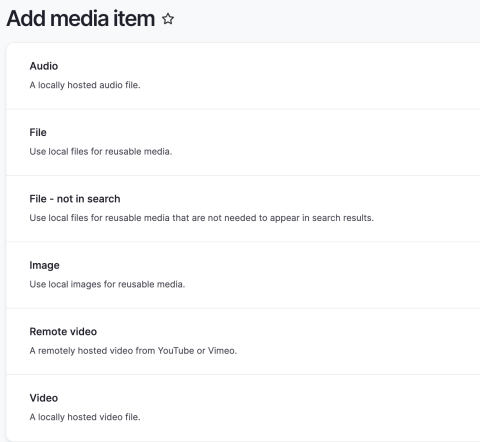
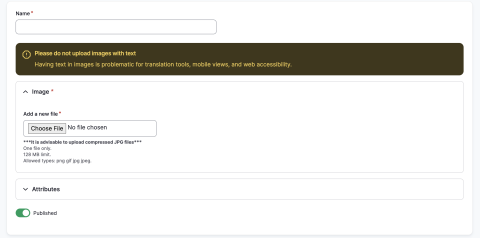
3. Select Image, then you will be able to add an image name, upload an image from your computer, add alt text (or make the images as "decorative" if alt text is not required for images such as banner images)
4. Save the image, and Select and insert to your page
Deleting media
You can also delete media items from the media library.
Once you navigate to the media library, you can use the search or filter items to find the media you wish to delete. Once you find it, select Delete in the Operations columns. If you want to delete multiple media items, you can select them using the checkboxes and perform a group action.
Once you select Delete, you will be given a confirmation page, to ensure you mean to delete the item.
Troubleshooting
If you receive an error when attempting to delete a file from the media library, it could be that the item is in use elsewhere. If you have updated the links or files in the live version of the page, the old media link could be present on a previous page version. Drupal hangs on to these media items in case you want to revert to a previous page down the road. In order to properly delete the file, you must also remove it from previous versions of the page, or delete old versions of the page.