
Once logged in, go to the Drupal Admin toolbar:
Editing the Homepage
- To edit a specific node, click on Content in the Drupal toolbar.
- Filter content type dropdown by Homepage.
- Click the Filter button.
- Click edit to the right of your specific item in the Operations column or click the Title of your item and then click the Edit button.
- Make your desired edits (see details below).
- Once done, click the Save button at the top of the page
Your homepage is broken down into three sections: Banner, Dynamic Quicklinks, Content Rows
Banner
Fill in the necessary fields in the Banner (Homepage banner: carousel)
- Title: This field is required.
- Image: This field is required.
- Content: Block of content (paragraph field)
- Call to action
- URL: This field is required.
- Link Text: This field is required.
- To add another Homepage banner: Click the Add Homepage banner: carousel slide button and complete steps 1-4 above
- To remove a Homepage banner: Click the three dots to the right of the banner you want to remove, select Remove
- Once done, click the Save button at the top of the page
Dynamic Quicklinks
Fill in or edit the necessary fields in the Dynamic quicklinks section
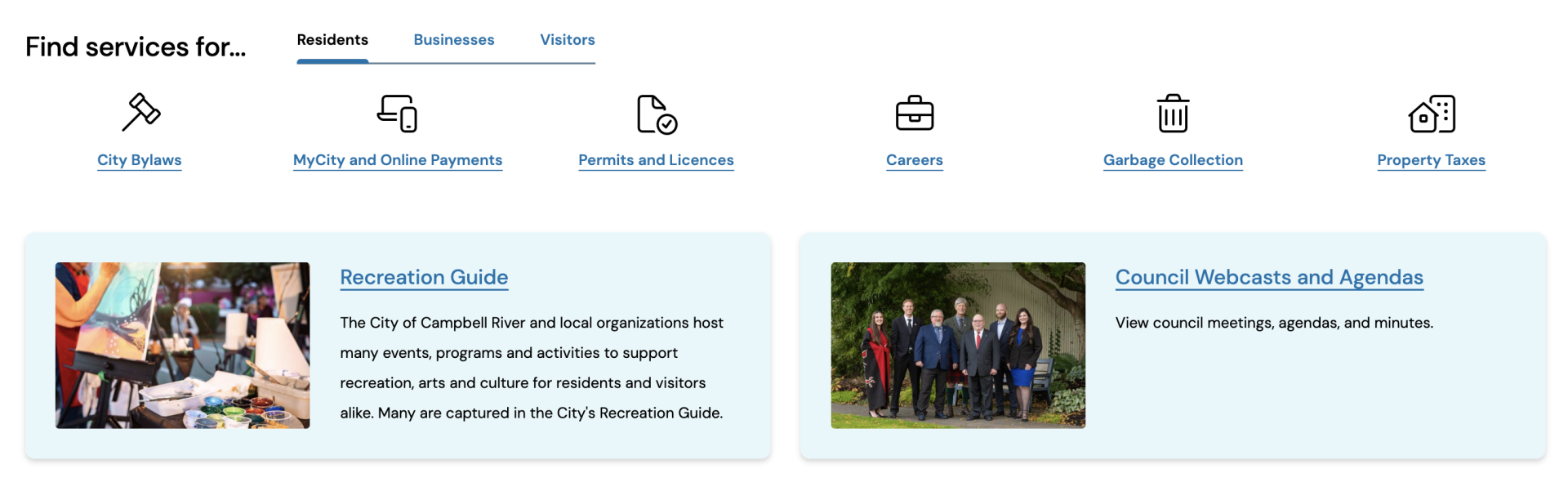
- Dynamics quicklinks title: (eg. Find services for...)
- Dynamics quicklinks content: Optional text will appear before the Dynamic quicklinks title
- Optional: There is a toggle Remember section at the bottom of the section "When checked,
sessionStoragewill be used to remember the user's selected section." By default this option is "off" - At the time of launch three Quicklink sections were included: Residents, Businesses, Visitors
- Click Edit beside the section you want to update
- You will see the option to edit Quick Links (content row) or Horizontal Cards (content row)
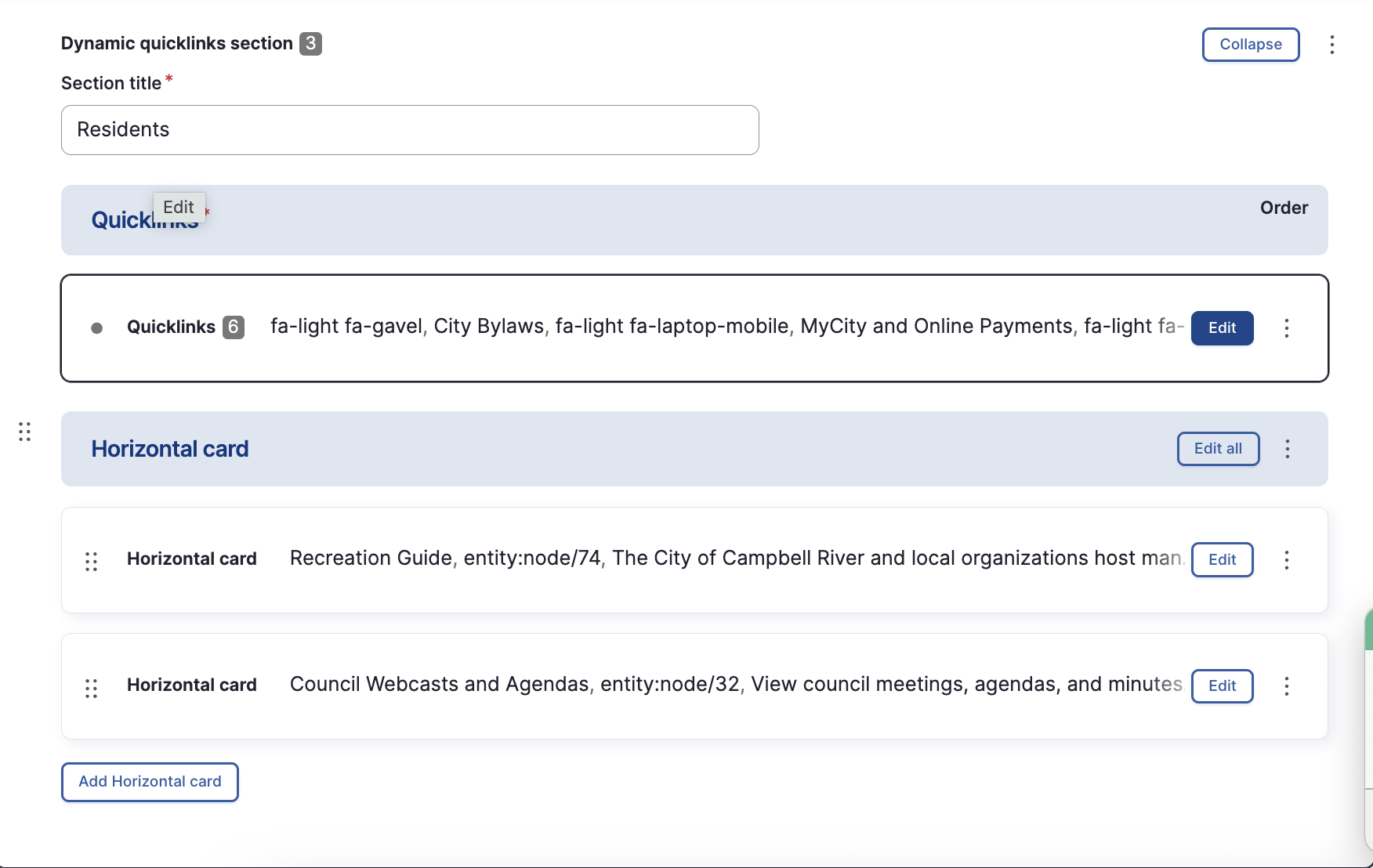
- Quicklinks
- Icon: This field is required. Follow the help text to select a Font Awesome icon
- Link URL & Link text: These fields are required.
- To add a new quick link, look to the bottom of that section and click Add Quicklink button
- Horizontal Cards
- Card title: This field is required (see help text)
- URL: This field is required.
- Card Content
- Card Style: Option for with or without an image or an icon (followed by image and icon fields)
To add a ne Horizontal card, look to the bottom of that section and click Add Horizontal card button
- Quicklinks
Example screenshot from the back-end
Image
Example screenshot from the front-end
Image
Content Row(s)
You can add any Content Row to your homepage that is available on your site. In addition, we have pre-created rows to reflect the approved designs earlier in your project:
- Upcoming Events: Includes editable areas: Row Title, URL & Link text to the Community Events Calendar, Icon
- Events added to the Event Content Type will automatically display on the homepage
- News: Includes editable areas: Row Title, URL & Link text to the main News Page, Icon, and a Featured Image
- News items added to the News Content Type will automatically display on the homepage
- Explore and Connect (Cards Content Row): Includes editable areas per card: Image, Card Title, Card Content and URL
- Based on the design there are three cards per row. You have the option to add more that will stack
- Land Acknowledgement (Image and Text Content Row)